|
Reports – How to run a report Please note that only users with reports access are able to run reports in VESTA. |
|
- Click on the Reports tab located at the top of the screen.

- Select the report that you want to run from the available reports for your project.
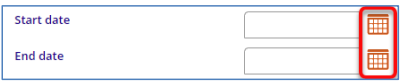
- Select the Start Date and End Date for the reporting period. You can either type the dates or you can use the calendar icon to choose from date range options.
- Select the project(s) for which you need to run the report. Use CTRL + click to select multiple projects. (VESTA will only display the projects that you have access to.)

- Some reports ask for additional filters, such as if the report needs to be run for only clients who are Certified homeless or Everyone. Make the appropriate selections for each additional filter.

- If the report needs to be run for a specific grant, select the grant. (Click Refresh based on selected projects to view available grants.) If you are not running the report for a specific grant, select all grants.

- Some reports let you choose to view just Aggregate/summary information, to view just Details/client information, or to view Both aggregate and details.

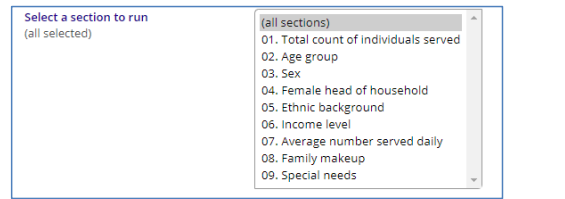
- Select all sections to run the entire report, or select specific sections of the report to run. Use CTRL + click to choose multiple sections.
- Click View here to run the report in VESTA, or another button to get a different format report.
