It is almost time to submit an APR – follow these steps to make sure your data is in tip-top shape!
Please note that only users with reports access can run reports in VESTA. Your user level is displayed at the top of the project dashboard. 
Agency users with Regular Plus Reports, Reports Only – Limited, and Supervisor user levels can access reports.
- Go to the Project Dashboard and look at the Annual Assessments Due widget.
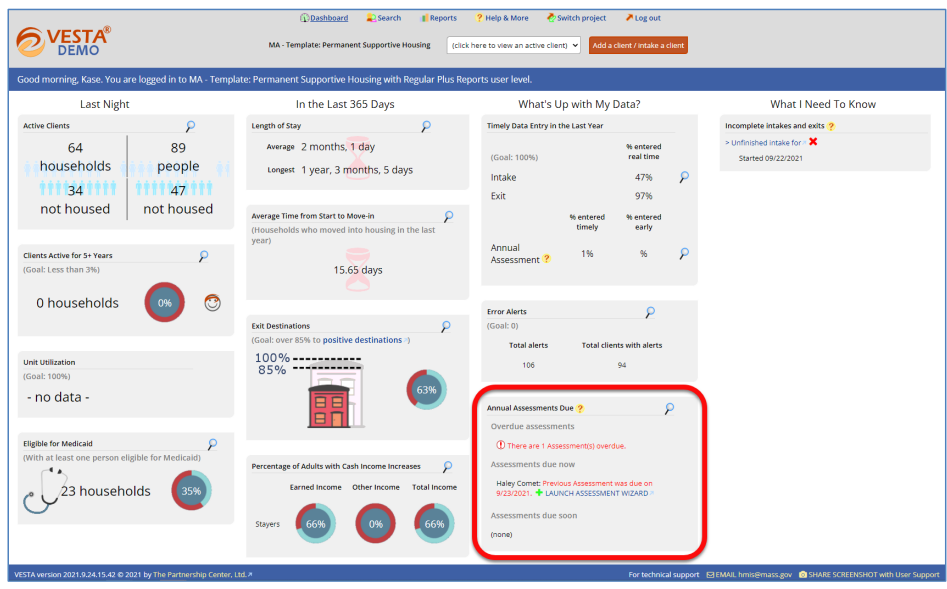
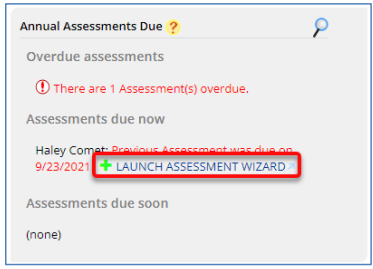
- If there are annual assessments that should have been done during the reporting period, click Launch Assessment Wizard for each missing annual assessment and complete all of the forms in the Wizard.
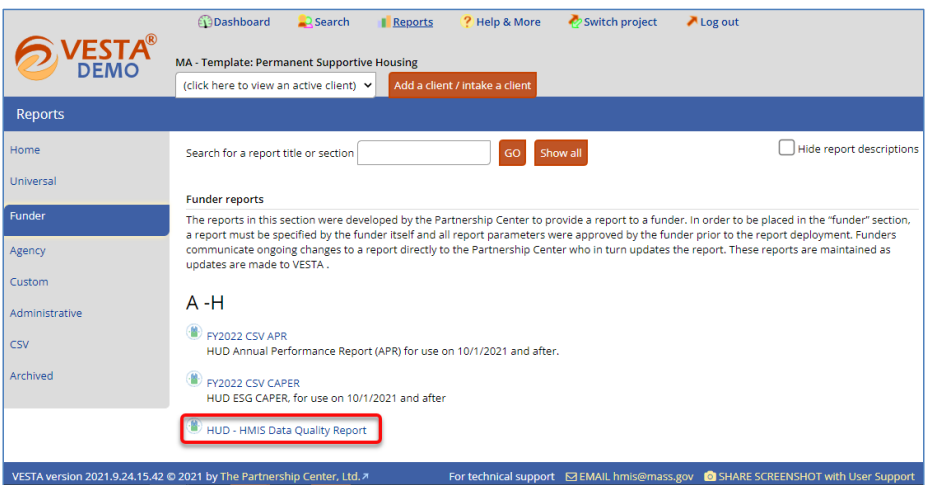
- Click on the Reports tab located at the top of the screen.

- Click the Funder tab at the left, then click HUD – HMIS Data Quality Report.
- Select the Start Date and End Date for the reporting period. You can either type the dates or you can use the calendar icon to choose from date range options.

- Select the project for which you need to run the report (VESTA only lists the projects to which you have access).

- Choose to view just Aggregate/summary information.

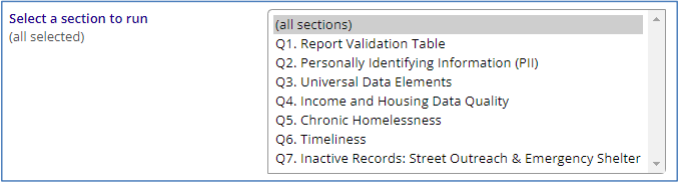
- Select all sections.
- Click View here to run the report in VESTA

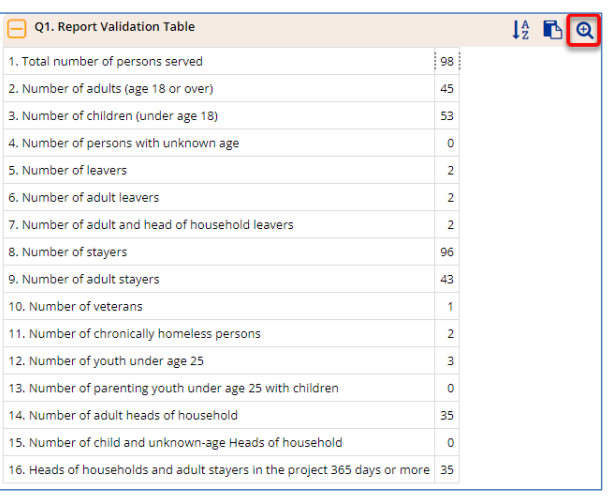
- Examine the numbers in the Q1. Report Validation Table to make sure they are correct. If they do not look correct, click the
 icon to open a new browser tab with a list of the clients being counted.
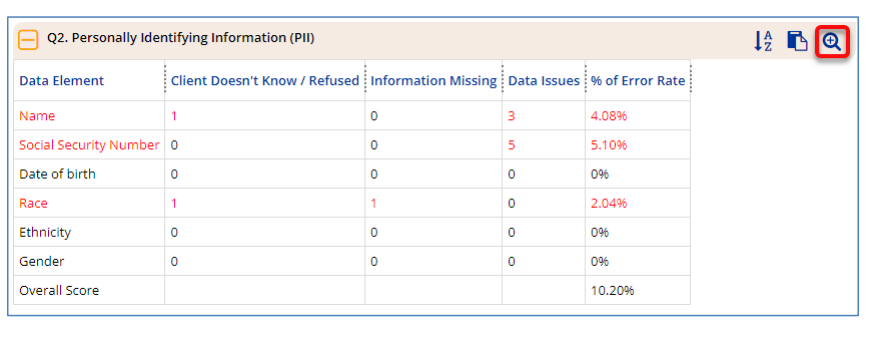
- As you scroll through the rest of the questions, look for items in red – these are items with errors. Click the icon to open a new browser tab with a list of the clients with these errors.
- Click the ClientID to open a client’s record to fix the issue.
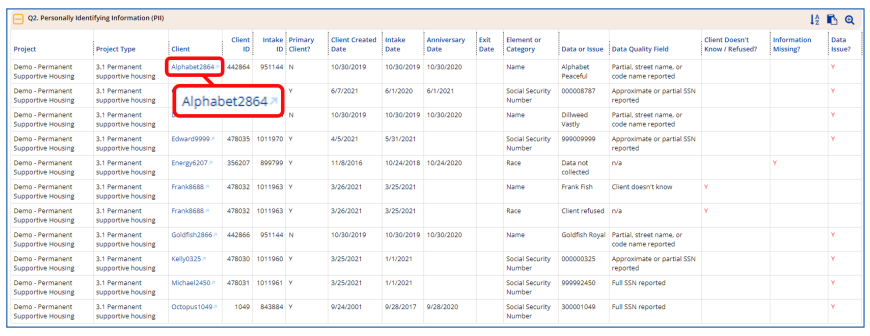
- The report will still be open in your browser tabs. You can click the tab return to it.

- When you have finished correcting errors, run the HUD – HMIS Data Quality Report again and check that as many errors as possible have been resolved.